Need More Help? MyDSP Exam Support:
Zoom Drop-In Support Hours
Cooper DiNapoli, Test Proctor Coordinator
Mondays & Wednesdays 10 am - 11 am
Zoom Drop-In Link
*Cooper will be out of the office Mon 9/28 and Wed 9/30.
In-Person Support
Visit our office (SRB 2120) during our business hours: Monday-Friday, 9 am – 12 pm and 1 pm – 4 pm. View DSP on the campus map.
Email testproctor@sa.ucsb.edu.
Step 1:
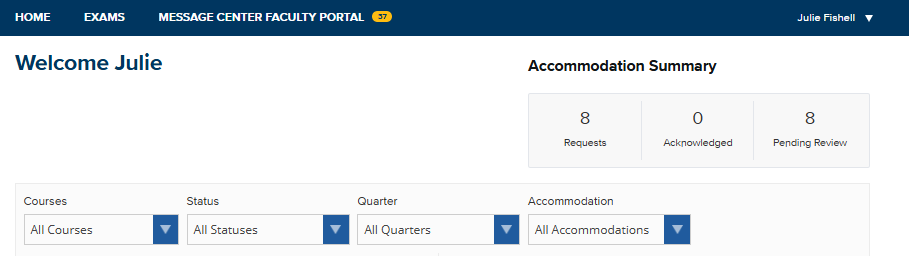
Locate the dark blue bar at the very top of your screen. This bar remains constant as you navigate through the portal, allowing you to switch between viewing student accommodation requests and managing your exams.
Click on the EXAMS tab located between "HOME" and "MESSAGE CENTER."
Step 2:
A list of courses for which you are the instructor will appear.
Click the pencil icon under the Edit/Add Exam Info column for the appropriate course.
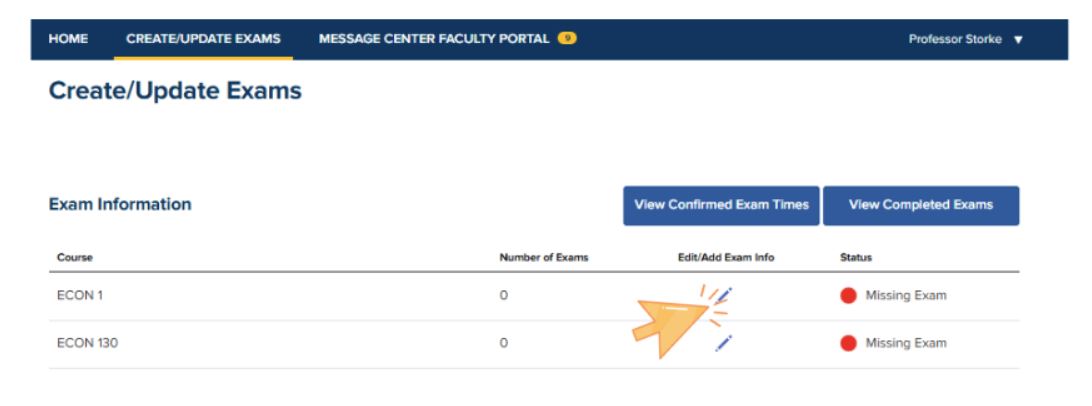
(Visual Aide: An orange arrow points to a "Pencil and Paper" icon under the "Action" column, indicating the step to add or edit exam details for a course.)
Step 3:
Click Add Another Exam.
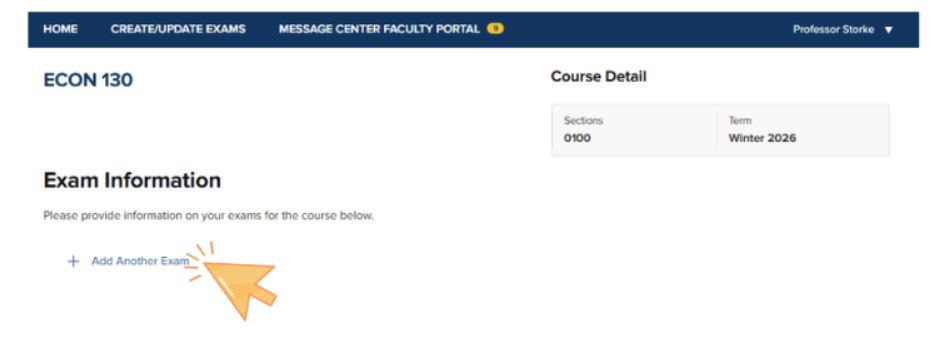
(Visual Aide: An orange arrow cursor points to a text link labeled "Add Another Exam" preceded by a plus symbol, indicating the action required to begin entering specific testing dates and times.)
Step 4:
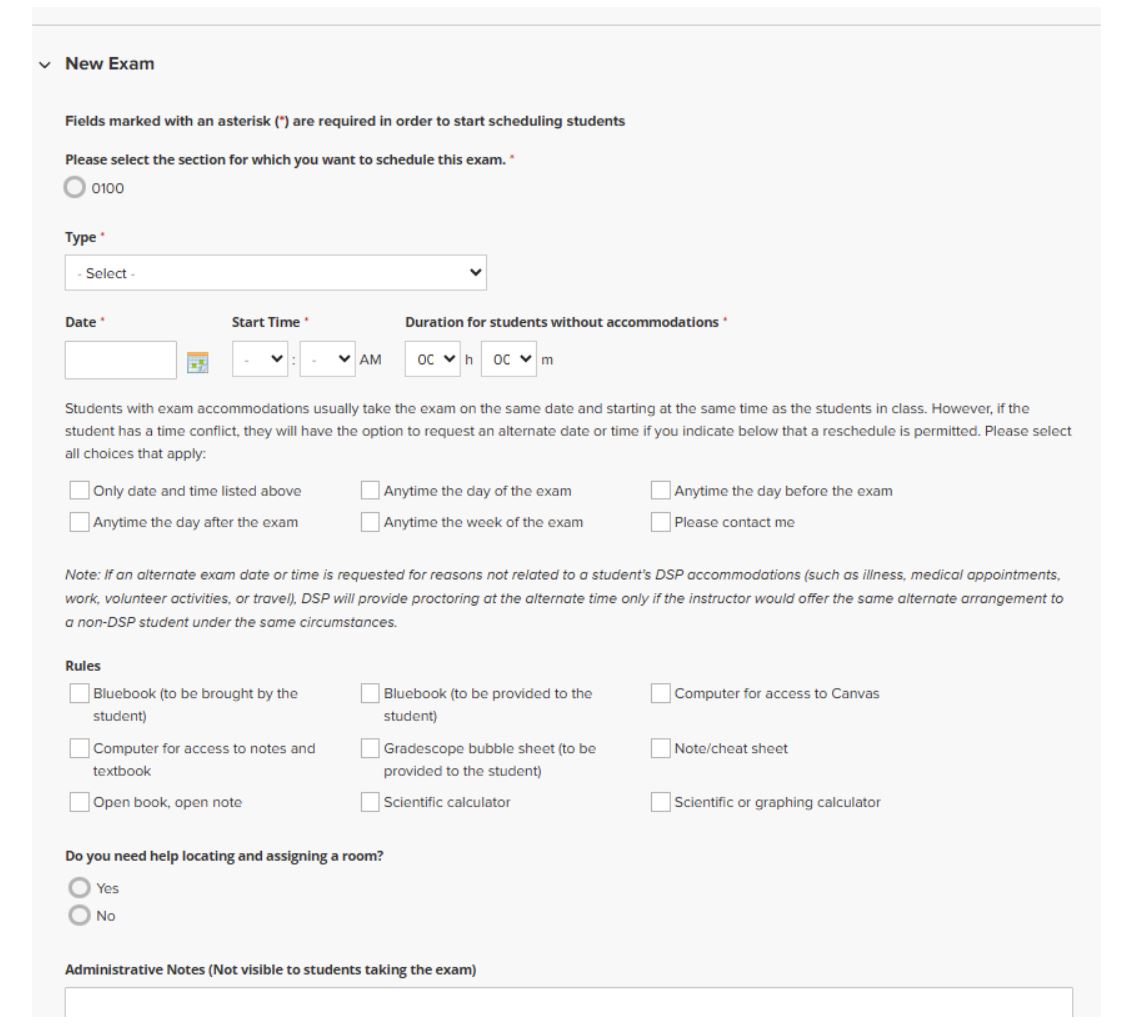
Complete all requested exam information.
The details you provide allow DSP and the Academic Testing Center to:
- Coordinate proctors and testing rooms
- Ensure an equitable testing environment
- Confirm that proctors follow your classroom policies and practices
- Create a smooth exam experience for both students and faculty
If you have questions while completing the form, please contact the Test Proctor Coordinator at testproctor@sa.ucsb.edu.
Sharing the Exam with DSP and the Academic Testing Center
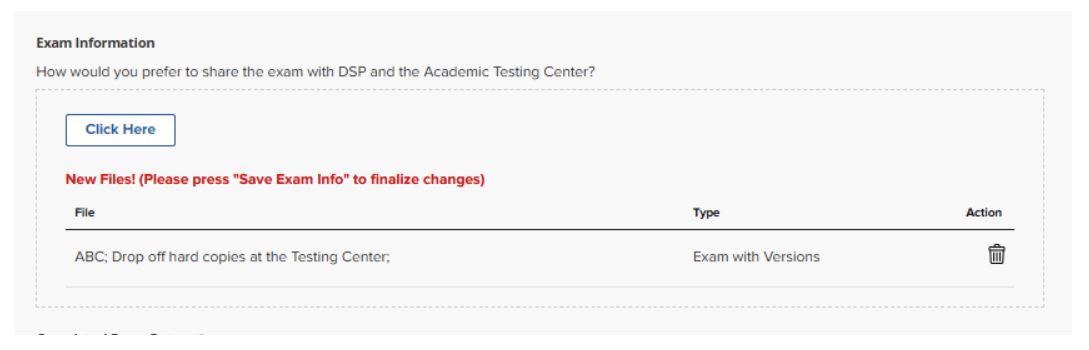
Under “Exam Information – How would you prefer to share the exam with DSP and the Academic Testing Center?”, click the blue Click Here button.
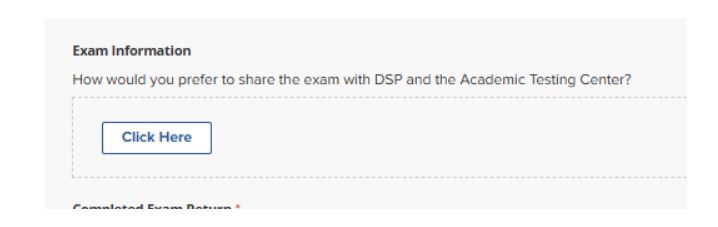
You will be asked to select the exam type:
- Paper Exam (with or without multiple versions)
- Canvas Exam
- Supplemental Files
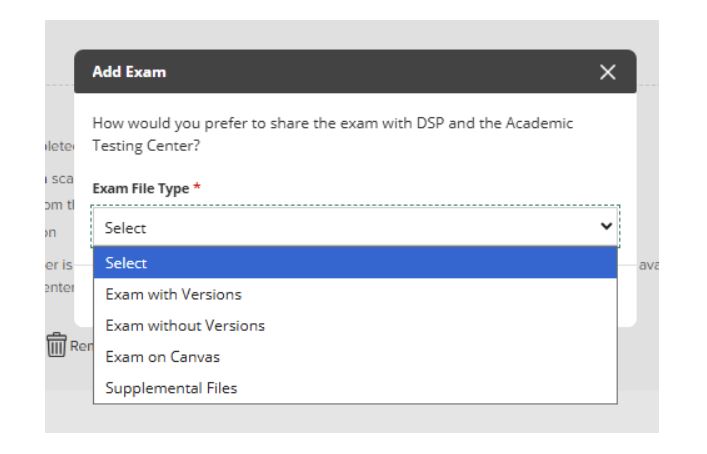
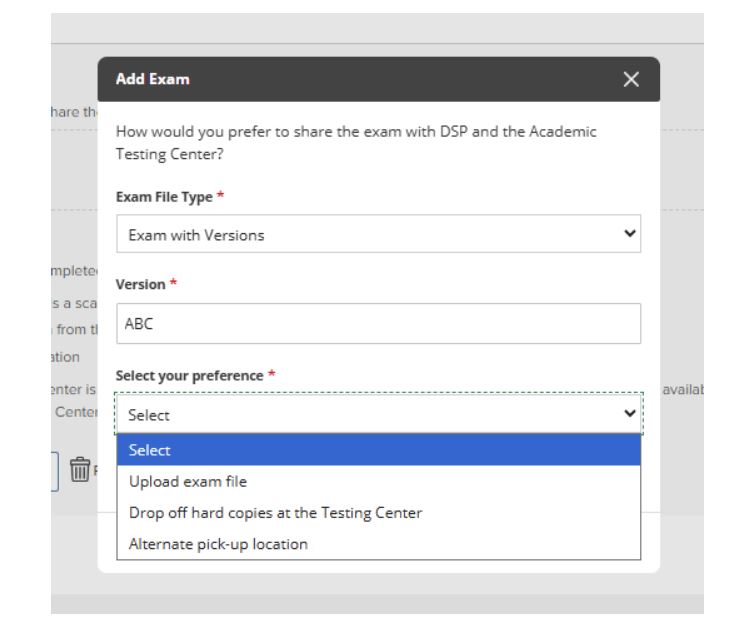
For Paper-Based Exams
You may choose one of the following options:
- Upload the exam file to be printed at the Testing Center (preferred)
- Drop off hard copies at the Testing Center
- Set an alternate on-campus pick-up location for the proctor
If you select an alternate pick-up location, you must provide a pick-up time approximately 15–30 minutes before the exam begins. DSP does not allow proctors to hold exams for longer than 30 minutes. If you are not available for pickup in that time frame, please consider sharing the exam file or hard copies with the Testing Center.
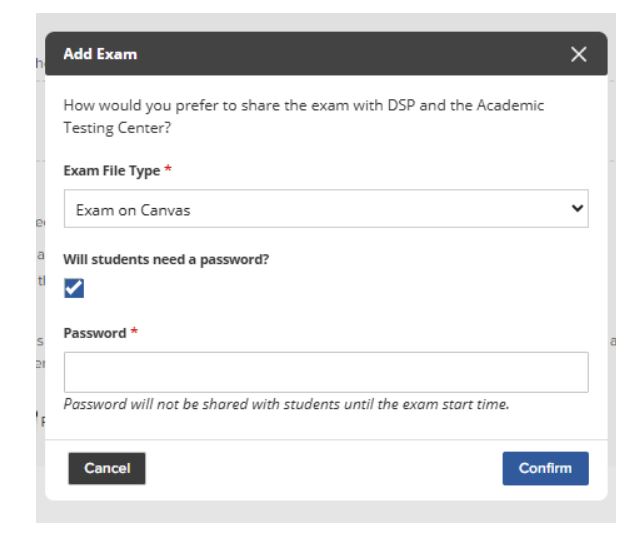
For Canvas Exams
You may enter a password that will be visible to the proctor but not to students. The proctor will provide the password at the exam start time, consistent with your classroom procedures.
If you are a faculty member who would like to discuss computer-based exams administered through the Academic Testing Center, please contact Linda Adler-Kassner at ladler@ucsb.edu.
Your selection, including notes, appears below the Click Here button.
Important: “Missing Exam” Status
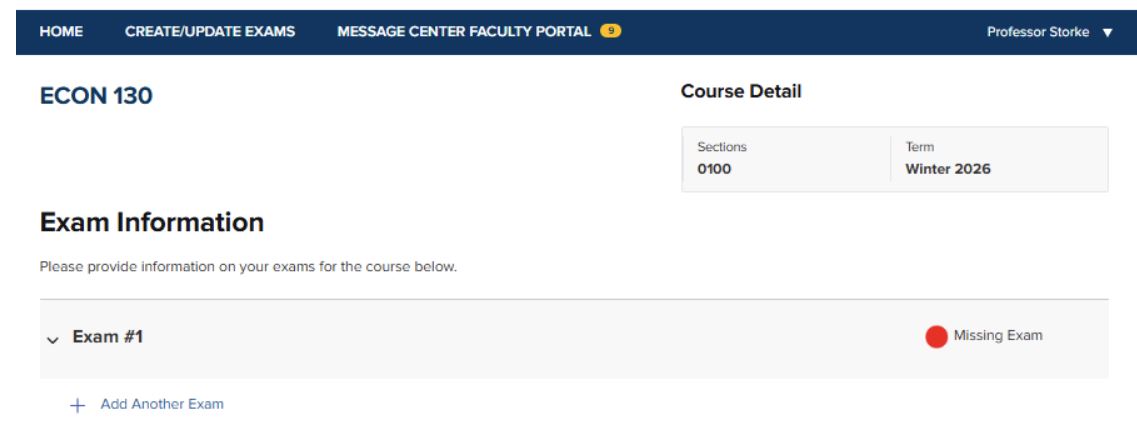
You are not required to select a sharing method immediately. For example, you may plan to upload a digital file but have not yet finalized the exam. If no exam delivery method is selected, the status will show “Missing Exam” with a red dot to remind you to complete this step at a later time.
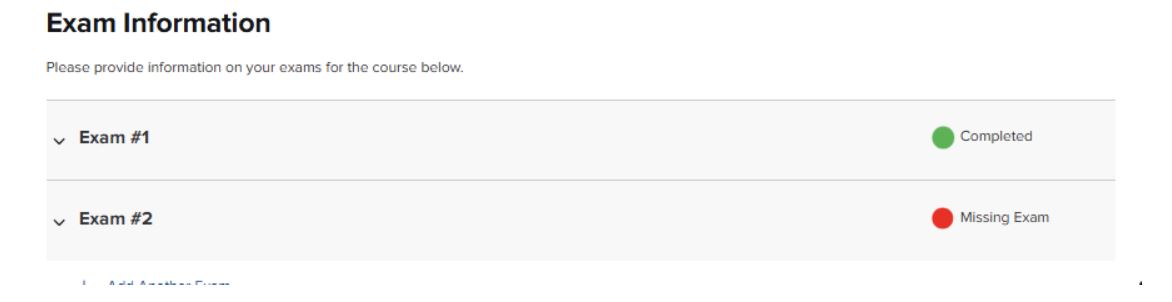
Once you select a delivery method and/or upload the file, the status will update to “Completed” with a green dot.
Editing an Exam
To edit an exam:
- Return to the Exams tab.
- Click on the exam you wish to edit.
You may continue to modify any details that do not affect proctor or room scheduling. Changes to exam duration or exam start time must be communicated directly to DSP at testproctor@sa.ucsb.edu so that proctor and room reservations can be adjusted accordingly.
How Students Confirm Exam Times
Once an exam is posted, meaning you have completed the steps above, students must confirm their exam time to indicate they will be taking the exam with DSP accommodations. For more information on this process, visit our how-to guide for students: Schedule an Exam.
Viewing Confirmed Exam Times
Step 1:
Under the Exams tab, click the blue View Confirmed Exam Times button.
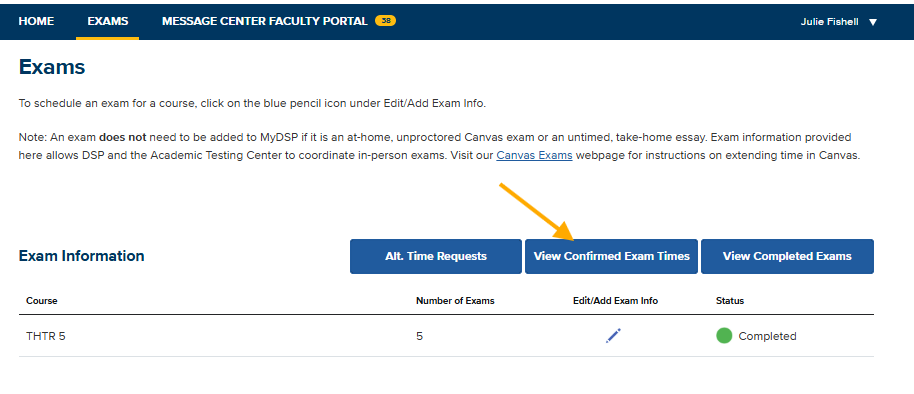
(Visual Aide: An orange arrow points to a blue button with white text reading "View Confirmed Exam Times" which is between two other buttons reading "Alt Time Requests" and "View Completed Exams")
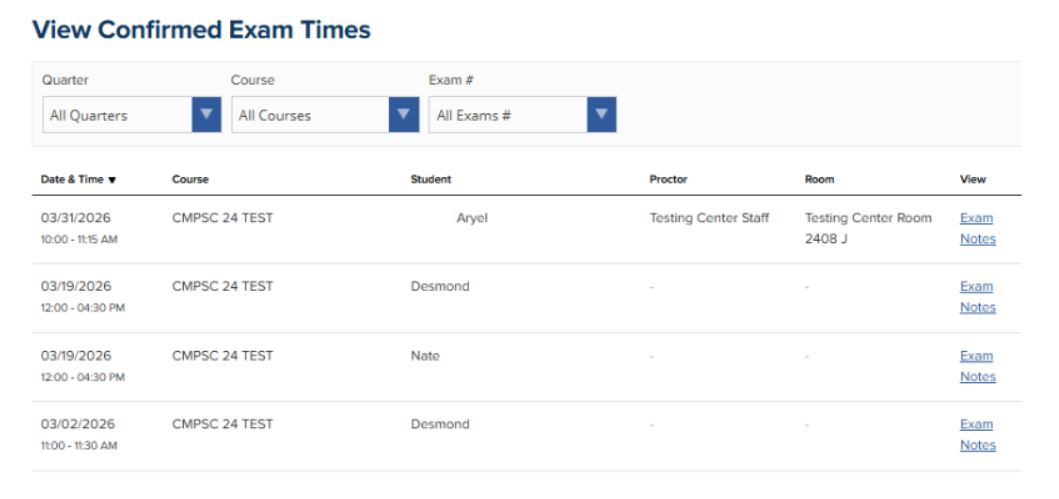
You will see an overview that includes:
- Exam date and time
- Course
- Student name
- Proctor
- Room
If proctor or room information is blank, scheduling is still in progress.
Step 2
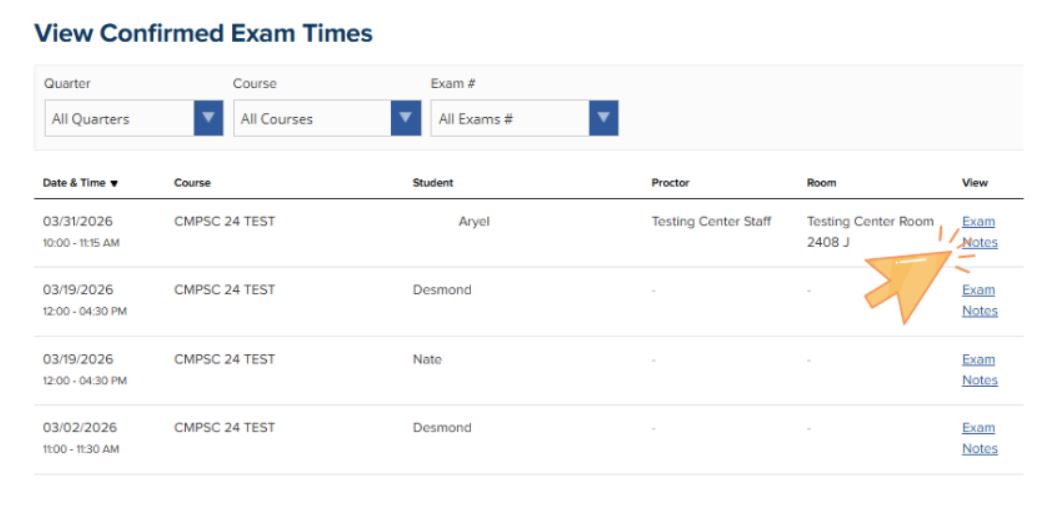
In the far-right column labeled View, click Exam Notes to access detailed information, including:
- The information you entered on the Create/Edit an Exam page
- Each student’s accommodations
- Proctor notes
Understanding Exam Notes
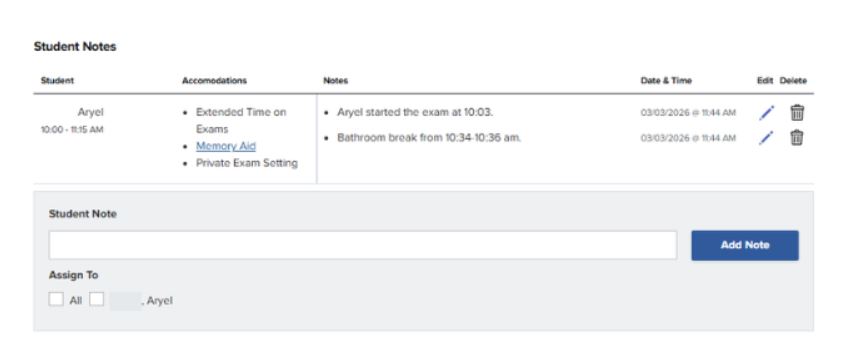
There are two types of notes:
General Notes
These apply to the exam as a whole (e.g., “Exams were returned to the listed drop-off location at 11:24 am.").
Student-Specific Notes
These apply to individual students.
Proctors may:
- Apply the same note to all students (e.g., “All students began the exam at 10:00 a.m.”), or
- Add notes for individual students (e.g., “Aryel took a bathroom break from 10:34 to 10:36 a.m.")
Important Reminder
If you need to update instructions for all students (e.g., permitted materials or exam directions), please return to the Exam Information under the Exams tab to make edits there.
Adding notes to the Exam Notes page may create confusion if the new guidance conflicts with the original exam information, and editing the Exam Information ensures all students and proctors receive the same updated information.
Reviewing Requests for Alternate Times
To see students who have requested to take the exam at a different time than the standard class time, faculty can click the 'Alt. Time Request' button to review and approve new times for these individual requests.
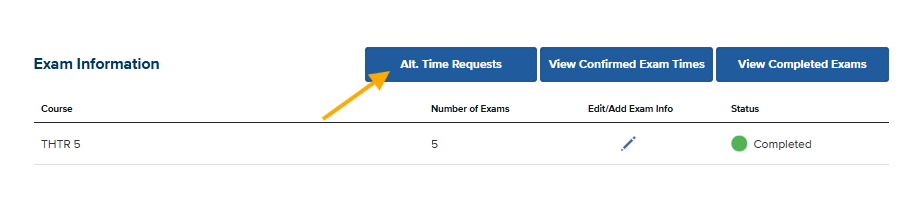
(Visual Aide: An orange arrow points to a blue button with "Alt Times Request" written in white inside of it, to the left of a button that says "View Confirmed Exam Times.")
Approving Alt. Time Requests
To approve the request, select the checkbox in the Action column for the specific student. Once the checkbox is marked, click the Mark Approved button. This new time will now be reflected for you and the selected student. If you have any questions or concerns about the request, please email testproctor@sa.ucsb.edu.
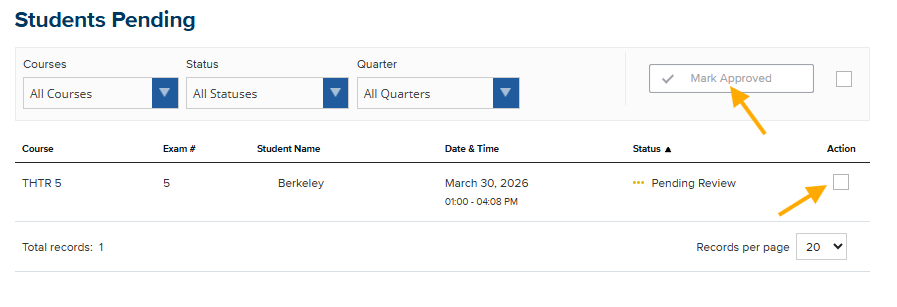
(Visual Aide: An orange arrow points to an empty box labeled "Action". Another orange arrow points to a white button labeled "Mark Approved.")