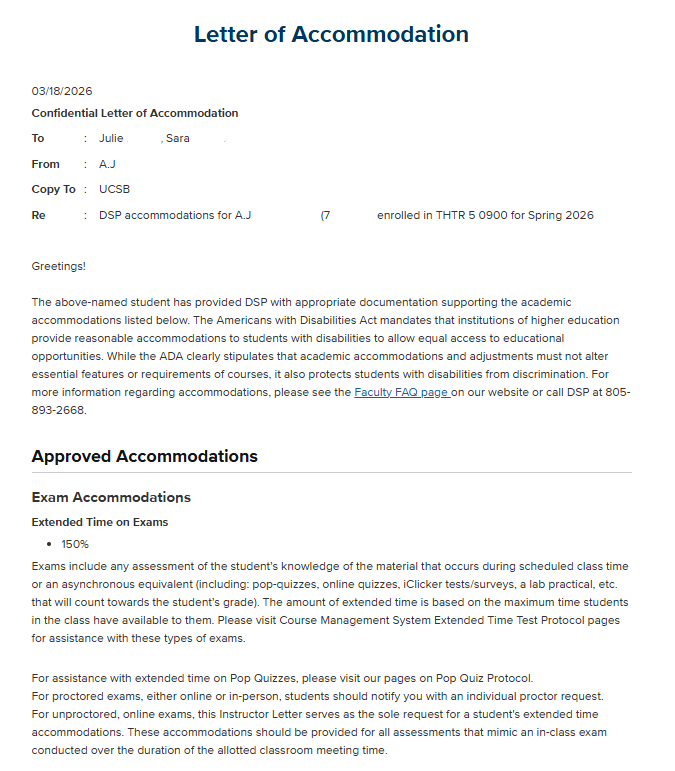
Step 1
Important: You will not be able to request an accommodation unless you have signed the Service Agreement for that accommodation. If you have not completed this step, please review the instructions on viewing and signing Service Agreements before proceeding.
- Click the blue "Request Accommodations" button.
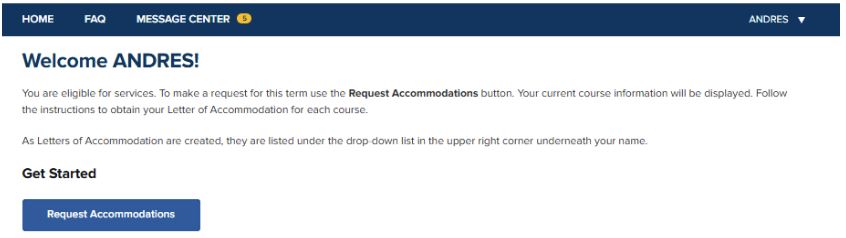
Step 2
- On the Request Accommodations page, your enrolled courses for the term (e.g., Spring 2026) are listed in a table. To successfully complete your request, you must interact with each course.
- To see the specific accommodation options for a class, click the Down Arrow icon or the Course Name. You can also select the "Expand All" link located in the top right corner of the table to reveal the options for all listed courses at once.
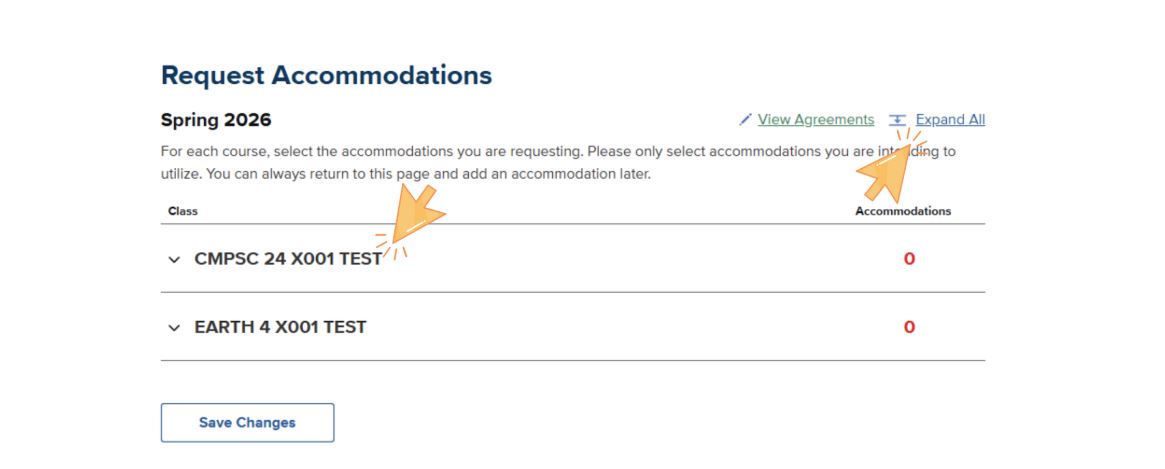
(Visual Aid: An orange arrow in the screenshot points directly to a "Course Name" listed, and another orange arrow points to an "expand all" button.)
Step 3
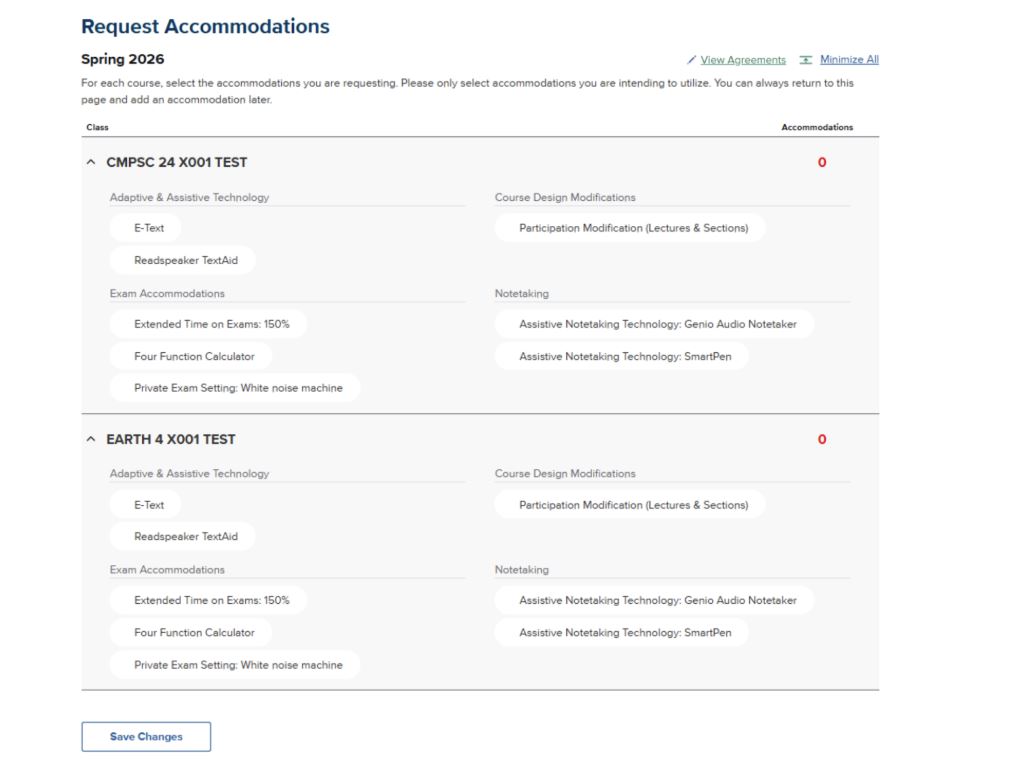
When you expand a course, you will see your approved accommodations grouped by category, such as "Exam Accommodations" or "Notetaking".
- Select the accommodations that you would like to activate for each course, and they will become highlighted with a blue background and checkmark. Accommodations not selected will not be highlighted and will maintain a white background. Please only select the accommodations you intend to use for that course. You may always return to this page and add an accommodation later.
- Once you have selected your desired accommodations for that course, click the "Save Changes" button at the very bottom of the page.
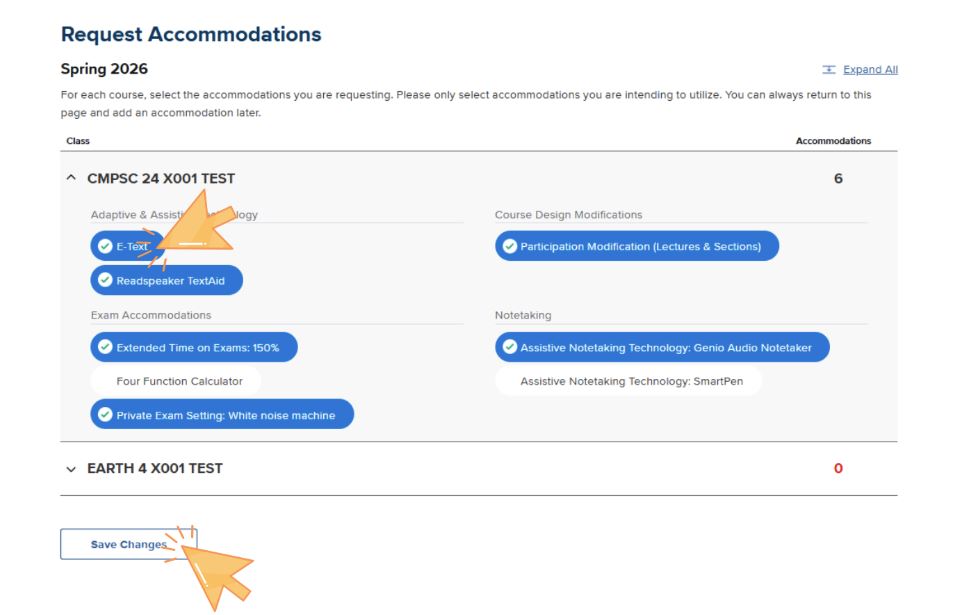
(Visual Aid: An orange arrow in the screenshot points directly to a listed accommodation that has been selected for the letter of accommodation, and another orange arrow points to the "Save" button.)
Once you click "Save Changes", your "Letter of Accommodation (LoA)" is automatically generated and sent to your instructor(s). A pop-up message will confirm that your requests have been submitted and your Letter of Accommodation has been sent.
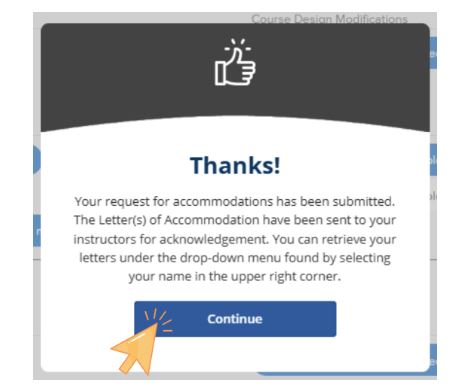
(Visual Aid: An orange arrow in the screenshot points directly to blue "Continue" button.)
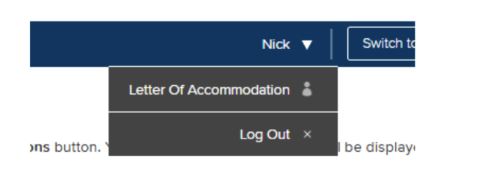
Your letters are found by clicking on your name in the upper right corner of the screen, then selecting "Letter of Accommodation" from the dropdown menu.
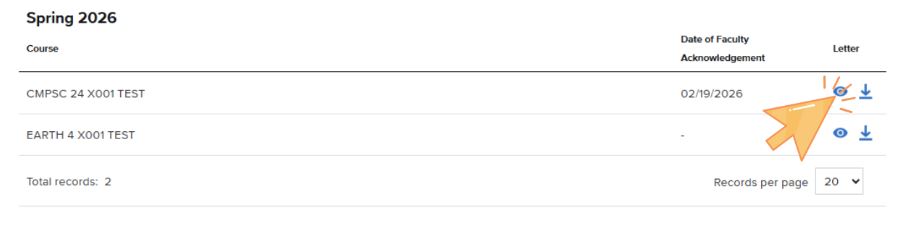
You may view or download your Letter by clicking the eye (view) or downward arrow (download) icons under the ‘Letter’ column on the right. If your instructor has reviewed your letter, a date will appear under "Date of Faculty Acknowledgement."
What Your LoA Includes (and Does Not Include)
Your Letter of Accommodation:
- Confirms that you are registered with DSP
- Informs your instructor of their responsibility to facilitate approved accommodations
- Provides descriptions and implementation instructions for your accommodations
Your LoA does not include:
- Your specific disability
- Functional limitations
- Medical or diagnostic documentation
Your disability-related information remains confidential.