Step 1
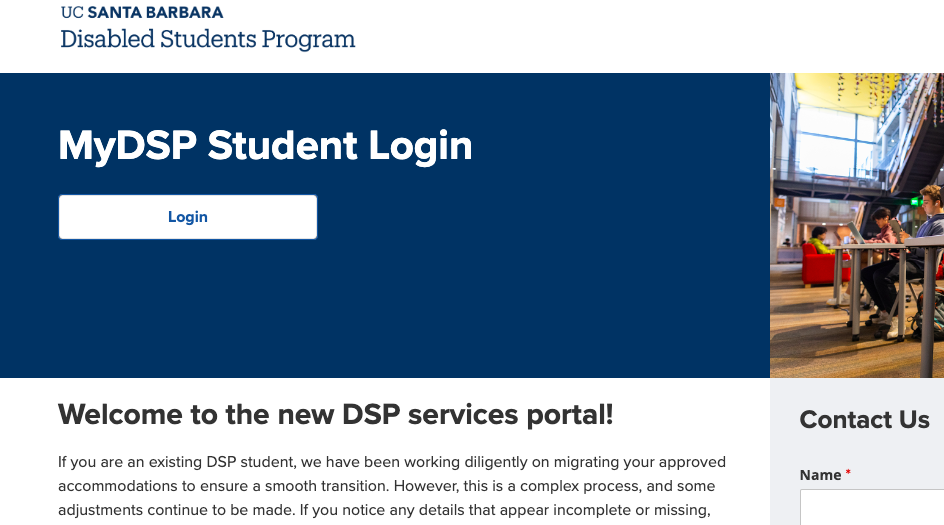
To access your student portal, you must first log in. The login section is located at the top of the homepage within the dark blue header banner.
- Locate the button labeled "Login". This button has dark blue text on a white background.
- Click or tap this button to proceed to the secure login portal.
- Log into MyDSP using your UCSB NetID and password.
Step 2
Once you have logged into the portal, you will see a welcome page containing important information regarding documentation requirements and processing timelines.
- Navigate to "Get Started"
- Select the "Start Application" button, which is located directly under the "Get Started" heading. This button features white text on a blue background.
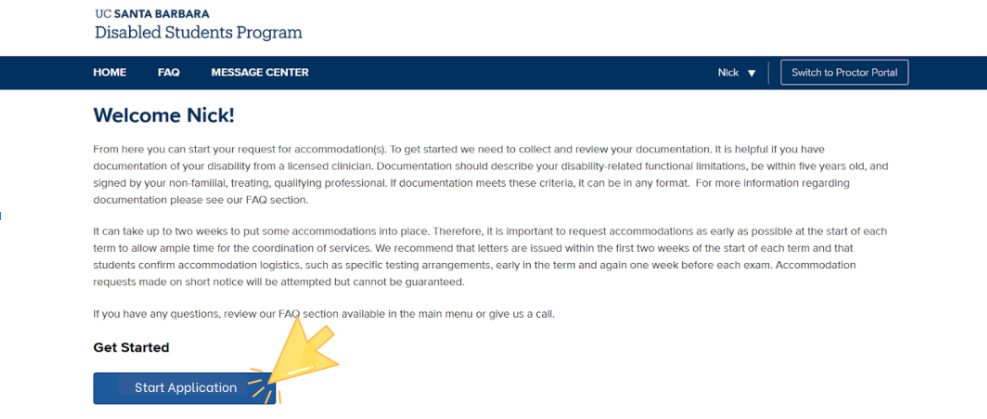
(Visual Aid: An orange arrow in the screenshot points directly to this "Start Application" button.)
Step 3
Complete the application. Select your current enrollment status and the disability or disabilities for which you are registering with DSP.
You will be asked to select one or more disabilities from a provided list.
-
You may select multiple disabilities.
-
You must provide supporting documentation for each disability listed if you would like to receive services related to that disability.
You will be asked to identify your Primary Disability. This should be the disability that most significantly impacts your day-to-day life.
Step 4
To determine eligibility for academic accommodations, the Disabled Students Program (DSP) requires documentation from a medical professional. The application includes a section where you may upload documentation you already have(e.g., IEP, 504 plan, junior college or other UC accommodation plans, Veteran Disability Rating, standardized testing, visit summary, etc.). If you do not have documentation to upload (for example, if your provider will send it directly to DSP), you may skip this section.
- Ensure your documentation is ready for upload.
- Scroll down to the section labeled "Upload Documentation."
- Click the button labeled "Choose Files." This will open a file browser on your device where you can select the documents you wish to submit.
- Note: If you have paper copies, you may visit the DSP office in Student Resource Building 2120 for scanning assistance.
- Note: If you have paper copies, you may visit the DSP office in Student Resource Building 2120 for scanning assistance.
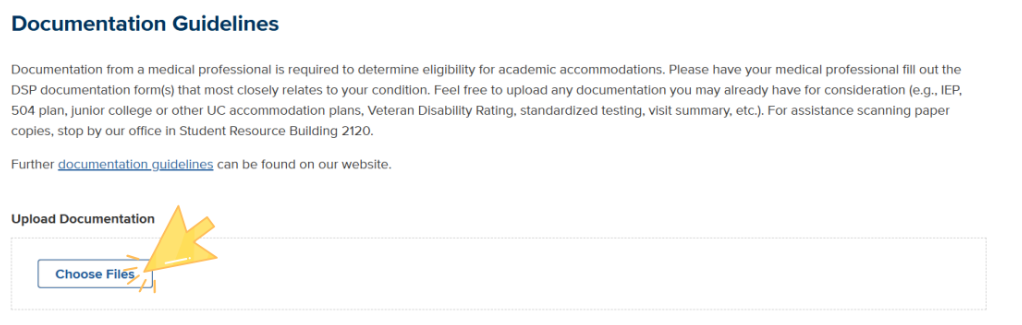
(Visual Aid: An orange arrow in the screenshot points directly to this "Choose Files" button.)
Step 5
After completing your application and uploading the necessary documentation, you must save your progress OR submit the form for review.
- Choose an Action:
- Submit: Click this button to finalize your application and send it to the DSP office for review.
- Save For Later: Click this button to save your current progress without submitting. You can return to finish the application at a later time.
(Reminder: you may still 'submit' the application without documentation uploaded.)
